Managing administrators in the Lyft Business Portal
Learn how to add, manage, and remove administrators in your Lyft Business Portal. This guide covers administrator permission levels, how to grant access, and how to use the 'Administrators tab' to manage your team.
In this article, we'll cover:
Administrator permission types
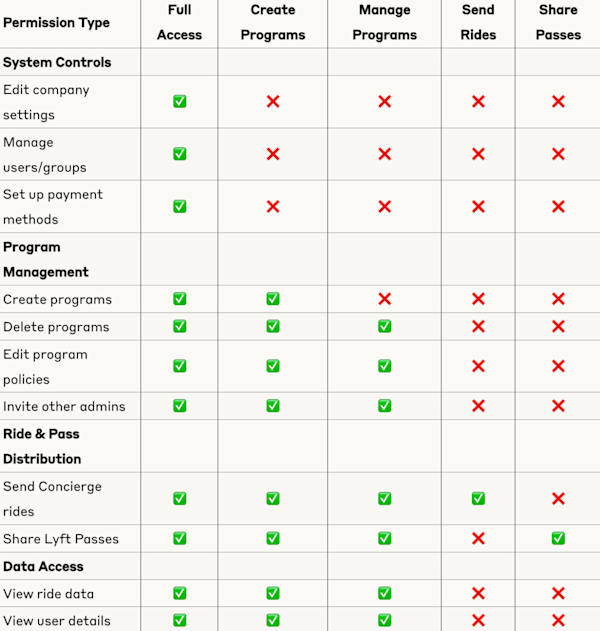
There are five different types of administrator permissions available within the Lyft Business Portal:
Organization-level permissions:
- Full Access: Complete control over your Lyft Business account — can create/delete programs, send rides, manage all users, access reporting and billing
- Create and Manage New Programs: Can create new programs and manage only the programs they create (cannot modify existing programs)
Program-level permissions:
- Manage Existing Programs: Can modify existing programs but cannot create new ones unless specifically invited
- Send Concierge Rides (Coordinator): Can request and schedule rides for others in specific Concierge programs
- Share Lyft Pass: Can distribute created Lyft Passes to riders
Note: Creating your organization's Lyft Business account automatically makes you an organization administrator with full access. Other types of admins, such as Concierge coordinators, will only be able to send rides and will not have access to additional portal features such as ride data. While data access is not a role in itself, it is a capability that certain administrator types have access to.
Accessing the 'Administrators' tab
The 'Administrators' tab displays all administrators in your organization with their:
- Name (first and last)
- Email address
- Administrator permissions level
To access:
- Log in to the Lyft Business Portal
- Go to 'People' on the left-hand navigation bar
- Select 'Administrators'
Use the search bar to find specific administrators by name, email, or phone number (search is not case-sensitive).
Adding administrators
Add individual administrators
- Go to the 'Administrators' tab
- Click '+ Add admin' in the top-right corner
- Enter the admin's work email address
- Select appropriate permission level:
- For organization admin: Choose 'Full access'
- For program admin: Choose 'Manage programs' and select specific programs
- Click 'Send invites'
If the employee is not yet invited to the account, grant access first via 'Business Profiles (+)'.
Duplicate existing administrator permissions
Save time by copying permissions from an existing admin:
- Click the ⋮ (three dots) next to the admin whose permissions you want to copy
- Select 'Duplicate permissions for new invites'
- Add new admin email addresses (manually or via CSV)
- Click 'Send invite'
Bulk add administrators via CSV
- Go to the 'Administrators' tab click '+ Add admin' → 'Add via CSV'
- Upload your CSV file with admin details
- Select permissions for all new admins
- Click 'Send invites'
You'll receive an email confirmation once all invites are processed.
Managing existing administrators
Edit admin permissions
- Go to the 'Administrators' tab
- Click the ⋮ next to the admin's name
- Select 'Edit details and permissions'
- Make your changes and click 'Save'
Transfer admin permissions
When someone leaves or changes roles:
- Use the 'Duplicate permissions' feature to copy their access to a new admin
- Choose whether to keep or remove the original admin's access
- Both admins will receive an email detailing what programs they gained or lost access to
Removing administrators
Individual removal
- Go to the 'Administrators' tab
- Click ⋮ next to the admin you want to remove
- Select 'Remove admin'
Bulk removal via CSV
- Go to the 'Administrators' tab
- Click 'Remove via CSV' in the top-right corner
- Upload a CSV file with the email addresses to remove
- Click 'Remove admins'
Important: Removed admins lose all access immediately, but their historical ride data remains in your system.
Accepting administrator access
Once invited by an existing administrator, follow these steps:
- Check your work email for the invitation (subject line example: "John D. invited you to be an admin for Starfleet's Lyft Business account")
- Click 'Accept invite' in the email
- Link your existing personal Lyft account for verification (or create one if needed)
- Follow the setup flow to access the Lyft Business Portal
- Complete the onboarding tips and tricks tour
Important notes
Email invitations
- Admins invited to multiple programs simultaneously receive one consolidated email
- Invitations sent at different times result in separate emails
- All invitations include clear next steps
SFTP/Concur integration
If your organization uses SFTP or Concur integration, you'll see warnings when manually adding or removing admins, as this may conflict with your automated roster system.
Business Profile limitations
Currently, Business Profile admins cannot also be riders in programs they manage. If you encounter this issue, log out of the Lyft Business Portal before accepting a rider invitation.
FAQs
Q: Can I see what programs an administrator has access to?
Yes, when viewing or editing an admin's permissions, you'll see all programs they can access and their permission level for each.
Q: What happens if I remove an administrator by mistake?
You'll need to re-invite them and set up their permissions again. Their previous ride data will still be available in your system.
Q: Can I give different permission levels for different programs?
Yes, you can customize an admin's permissions for each program they have access to.
Q: How do I know if my bulk upload was successful?
You'll receive an email with the results, including any accounts that failed to create and the reasons why.
Q: I don't know who to contact for admin permissions. What should I do?
If you're a decentralized account and don't know who to contact, contact Lyft Business Support.
Q: What should I do if I didn't receive the invitation email?
First, check your spam or junk folder. If you're still unable to find it, then confirm the administrator used your correct work email address and ask them to resend the invitation. If you still don't receive it, contact Lyft Business Support.
Q: What should I do if I can't link my personal Lyft account?
Make sure you're using the email address associated with your personal Lyft account and try resetting your Lyft account password. If issues persist, contact Lyft Business Support.